
How to Fix a Slow Windows 11 PC Without Resetting It
A Windows 11 PC that used to feel fast can gradually become slower. Programs take longer to open, Windows may respond with a delay, and even simple tasks such as browsing or opening File Explorer can start to feel frustrating. The good news is that a slow PC does not automatically mean that you need to reset Windows or replace your hardware. In many cases, the problem is caused by too many startup programs, limited free storage, background processes, outdated drivers, or applications consuming more system resources than expected.
This guide explains how to troubleshoot and improve Windows 11 performance step by step without resetting the operating system.
1. Check what is slowing down your PC
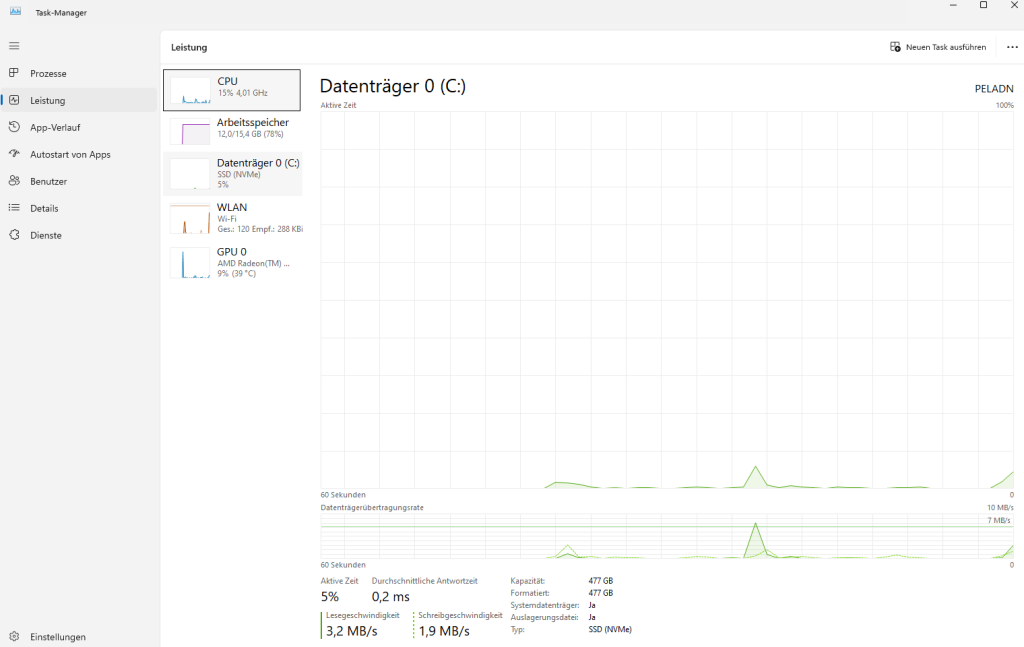
Before changing anything, find out what is actually using your system resources. Press Ctrl + Shift + Esc to open Task Manager. You can also right-click the Start button and select Task Manager. Under Processes, look at the CPU, Memory, Disk and GPU columns. If one application is constantly using a large amount of CPU or memory, it may be responsible for the slowdown. For example, a browser with many open tabs can consume a significant amount of RAM. Similarly, an application performing a background update may temporarily use a large amount of CPU or disk activity.
Do not immediately end an unfamiliar Windows process simply because it is using resources. First identify the application and determine whether it is safe to close.
2. Disable unnecessary startup apps
Programs that automatically start with Windows can increase boot times and continue running in the background. Open Task Manager and select Startup apps. You will see applications that can launch automatically when you sign in to Windows. Pay attention to the Startup impact column. You can usually disable applications that you do not need immediately after signing in. For example, a program that you use only occasionally does not necessarily need to start every time Windows boots. Right-click an unwanted startup application and select Disable. Be careful with security software, hardware utilities and other applications that you know are required for your system.
3. Make sure your Windows drive has enough free space
A nearly full system drive can contribute to poor performance and can make Windows updates and temporary file management more difficult.
Open Settings > System > Storage.
Windows will show how your storage is being used. Look for large categories such as temporary files, installed applications, documents, videos and other files. The Temporary files section is a good place to start. Windows can identify files that can generally be removed safely, such as temporary system files and old update-related data. Before deleting anything, review the selected categories carefully. Do not remove files simply because they appear large.
4. Remove applications you no longer use
Unused applications can take up storage and may also install background services or startup components. Go to:
Settings > Apps > Installed apps
Sort the list by size if you want to identify particularly large programs. Uninstall software that you no longer need, especially applications that you installed temporarily and forgot about. Avoid removing drivers, hardware utilities or other system components unless you know exactly what they are used for.
5. Install Windows and driver updates
Performance problems can sometimes be caused by bugs or compatibility issues that are fixed through software updates. Open:
Settings > Windows Update
Select Check for updates and install available updates. You should also check for updated graphics and chipset drivers, particularly if you are experiencing problems while gaming, using demanding applications or connecting external hardware. For graphics drivers, use the official software or download page provided by your GPU manufacturer. Avoid downloading drivers from random websites. Official sources reduce the risk of installing modified or incorrect software.
6. Check whether your PC is running out of memory
RAM limitations can become noticeable when you run several demanding applications at the same time.
Open Task Manager > Performance > Memory.
Look at the amount of memory currently in use. If memory usage is consistently very high during normal workloads, close applications that you do not need or reduce the number of browser tabs and background programs. If your PC regularly reaches its memory limit despite normal usage, adding more RAM may provide a more meaningful improvement than simply changing Windows settings. This is particularly relevant on systems with a small amount of installed memory.
7. Reduce unnecessary background activity
Some applications continue running even when you are not actively using them. Review applications that you regularly leave running in the background. Cloud storage software, communication tools, game launchers and browser processes can all consume resources. You do not necessarily need to uninstall these programs. Simply closing applications that you are not currently using can reduce memory and CPU usage. Windows 11 also provides background permissions for some applications under their installed app settings, although the available options can vary between applications.
8. Check for malware
Unexpected slowdowns can sometimes be related to unwanted or malicious software. Windows 11 includes Microsoft Defender Antivirus, which provides built-in protection. Open Windows Security and select Virus & threat protection. Make sure your security software is up to date and run a scan if you notice unusual system behavior such as unexpected pop-ups, unknown programs, browser redirects or unusually high resource usage. Do not install multiple antivirus programs at the same time unless you specifically understand how they interact. Running several real-time security products can itself create unnecessary system overhead.
9. Check your storage drive for problems
If a PC suddenly becomes extremely slow, freezes frequently or shows unusual disk activity, the problem may not simply be Windows configuration. For SSDs, check the drive manufacturer’s health-monitoring software when available. For traditional hard drives, unusual noises, repeated freezes or very slow file operations can be warning signs of hardware problems. If important files are stored on a drive showing signs of failure, create a backup before attempting extensive troubleshooting. A software tweak cannot fix a physically failing storage device.
10. Restart Windows properly
It sounds simple, but restarting the PC can solve temporary performance problems caused by applications, memory usage or background processes. Windows PCs can remain active for long periods through sleep and other power-management features. A normal restart closes running processes and gives Windows a clean session. To restart Windows 11, open Start > Power > Restart. If your PC becomes noticeably faster after every restart but gradually slows down again, that is a useful clue. It suggests that a background application, memory usage or another recurring process may be contributing to the problem.
What you should not do
You may find Windows optimization guides recommending registry cleaners, aggressive “debloating” scripts or programs that promise to make your PC dramatically faster with one click. Be careful with these tools. A registry cleaner is rarely the solution to a modern Windows performance problem, and aggressive scripts can remove components that you may later need. The safest approach is to identify the actual bottleneck first and then make a targeted change.
When a Windows reset is worth considering
If you have checked startup programs, storage, updates, background applications and security but the system is still unusually slow, a Windows reset may eventually be worth considering. Before doing so, make sure your important files are backed up. A reset can remove applications and change system settings, so it should be treated as a troubleshooting step rather than the first solution. If the PC remains slow even after a clean Windows installation, the problem may be related to hardware such as insufficient RAM, a failing storage drive, overheating or an aging processor.
Final thoughts
A slow Windows 11 PC does not necessarily need a reset. Start by identifying the bottleneck in Task Manager, then check startup programs, available storage, installed applications, updates and background processes. Also consider malware and potential hardware problems if the slowdown is unusual or persistent. The most important step is to avoid making random changes. Once you know what is consuming your PC’s resources, it becomes much easier to choose the right solution. For many systems, a few targeted changes are enough to make Windows 11 feel noticeably more responsive again.
